Try the collage on iphone




Best fit: each photo gets a frame in its own shape, so nothing is cut off.
The short answer
The Photos app on iPhone has no collage button. To make a collage on iPhone without installing an app, open this page in Safari, tap Add photos, choose 2 to 30 photos and tap Download. Then tap Save or share and choose Save Image to put the collage in Photos. We ran the same six 12-megapixel photos through this page and through Apple’s Shortcuts app: this page kept every photo whole, and the Shortcuts grid kept 75% of each.
Price: Free — no account, no watermark, nothing to buy.
- No app to install
- Every photo stays whole
- Saves straight to Photos

How to make a collage on iPhone in four steps
- Tap Add photosOpen this page in Safari, tap Add photos, then Photo Library.
- Select 2 to 30 photosTap each photo, then the check mark. HEIC photos from the iPhone camera work.
- Let Best fit arrange themEach photo gets a frame in its own shape. Tap Shuffle for another arrangement, or press and hold a photo and drag it onto another to swap them.
- Download and saveTap Download, then Save or share, then Save Image. A 3000 × 3000 JPG with no watermark goes into your Photos library.
How to make a collage on iPhone: what we measured
We ran the same photos through each way to make a collage on iPhone on November 5, 2026, on an iPhone 17 Pro simulator running iOS 26.5: three vertical and three horizontal 12-megapixel HEIC photos (3024 × 4032 and 4032 × 3024). Then we opened each saved file and compared its pixels with the originals.
| Shortcuts: In a Grid | Shortcuts: Horizontally | This page: Best fit | |
|---|---|---|---|
| Photos used | 6 | 3 | 6 |
| Picture kept from each photo | 75%, cropped to a square | All of it | All of it |
| Empty space | None | White strip, 10% of the image | Spacing and margin you can change |
| Result size | 9072 × 6048 | 10080 × 4032 | 3000 × 3000 |
| File size | 9.0 MB | 6.1 MB | 2.7 MB |
| Settings | Spacing | Spacing | Layouts, templates, frames, words |
| Set up first | Build a shortcut | Build a shortcut | Nothing |
 Shortcuts, In a Grid
 This page, Best fit
Does the iPhone have a built-in collage maker?
Not in Photos. Select several photos in your Library and open the ⋯ menu: iOS 26.5 offers Slideshow, Favorite, Delete, Copy, Duplicate, Hide, Add to Album, Adjust Date & Time and Adjust Location. None of these makes a collage.
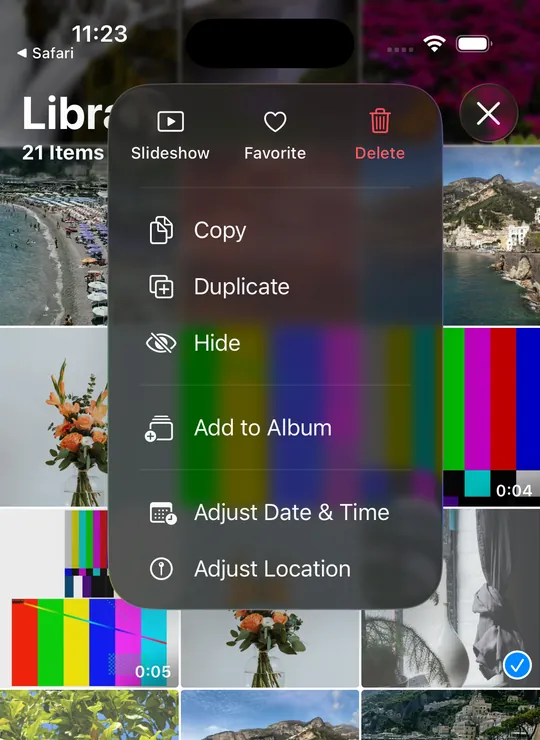
The closest built-in tool is the Shortcuts app, which can combine images.
How to make a photo grid with Shortcuts
- Open Shortcuts and tap +.
- Add Select Photos, tap its arrow and turn on Select Multiple.
- Add Combine Images and change Horizontally to In a Grid.
- Add Save to Photo Album.
- Tap the play button, choose your photos and tap the check mark.
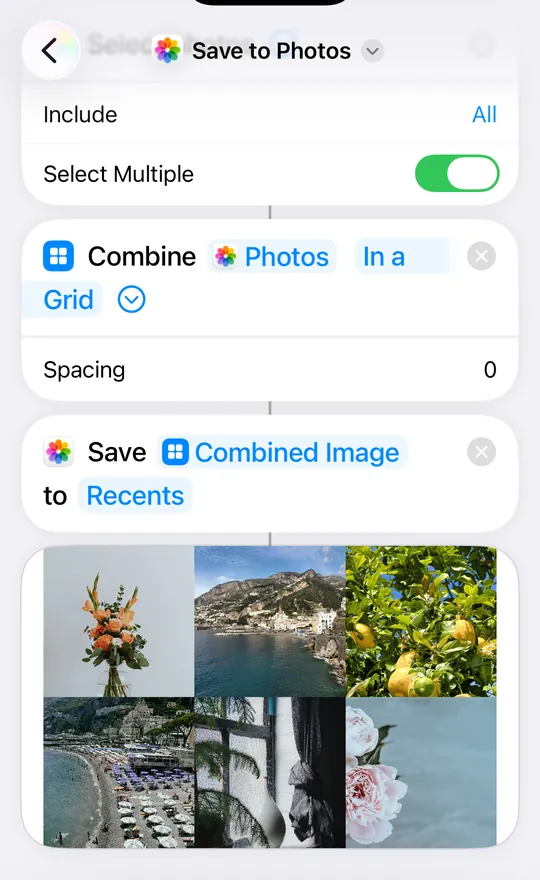
Video tutorials often use a ready-made Photo Grid shortcut from the Gallery tab. We built ours from Apple’s actions so every setting is visible: the action offers Horizontally, Vertically or In a Grid, plus one number for Spacing.
In a Grid turned all six photos into 3024 × 3024 squares. Each square matched a centered crop of the original, so each photo lost 25% of its picture. The result is large, at 9072 × 6048 pixels and 9.0 MB.
Horizontally kept three mixed photos whole, at their own pixel size, lined up along the top. The horizontal photo is shorter than the vertical ones, so a white strip sits under it and takes up 10% of the image.

Why this collage on iPhone keeps every photo whole
Best fit gives each photo a frame in its own shape. In our run the frames came out at 3:4 and 4:3, the same as the photos, and the six photos filled 91.5% of the 3000 × 3000 canvas. The rest is the spacing and margin, which you can change under Frames.
Best fit can make one photo much smaller than the others: the smallest frame in our run was 288 × 384 pixels. Tap Shuffle for a new arrangement, or open Layout and pick Classic grid with Keep all photos whole to get equal cells.
Your photos stay on the iPhone. The iOS picker says so itself: under Private Access to Photos, it explains that Safari can only access the items you select. This page opens them in the browser and sends nothing to a server.
Using Google Photos instead
If you already have the Google Photos app, select up to 6 photos, tap Create, then Collage. Google lists iOS 18 or later and app version 7.64 or later for its current collage editor. Source: Google Photos Help, read November 5, 2026.
The best way to make a collage on iPhone
- Mixed vertical and horizontal photos, or you want words and frames: this page.
- A quick grid where square crops are fine: Shortcuts, In a Grid.
- Up to 6 photos and Google Photos is already installed: Google Photos.
After you make a collage on iPhone
- Save Image puts it in Photos. Download JPG puts it in Files, in the Downloads folder.
- For a Story or a lock screen, tap Story 9:16 or Phone wallpaper above the canvas. The Instagram Story guide has the safe-area numbers.
- For a bigger file, open Size and format in the download window and choose 4096 pixels.
- Safari keeps your draft on this iPhone, so you can close the page and carry on later.
Collage on iPhone questions
Still stuck? Email support@collagemaker.org.
Can you make a collage on iPhone without an app?
Yes. Open this page in Safari, tap Add photos, choose 2 to 30 photos and tap Download, then Save or share and Save Image. Nothing is installed.
Does the iPhone have a built-in collage maker?
The Photos app has no collage option on iOS 26.5. The Shortcuts app can combine images into a grid or a row with Apple’s Combine Images action.
Why does my iPhone photo grid cut off parts of my photos?
In our run, the In a Grid setting in Shortcuts made every cell square, so 3:4 and 4:3 photos each lost 25%. Best fit on this page gives each photo a frame in its own shape instead.
How do I put two pictures side by side on iPhone?
Add both photos here and tap One row in Layout, or open the combine photos page, which joins them at the same height with no background.
Where does a collage on iPhone get saved?
Save or share, then Save Image, puts it in Photos. Download JPG saves it to Files, in the Downloads folder.
Can I make a collage on iPhone with HEIC photos?
Yes. All six photos in our run were HEIC files, and they opened in Safari with no conversion step on your side.
Is this way of making a collage on iPhone free?
Yes. It is free, with no account, no watermark and nothing to buy. Photos are processed in Safari and are not uploaded.
 Collage on Instagram Story
 Combine photos
 Wallpaper collage maker
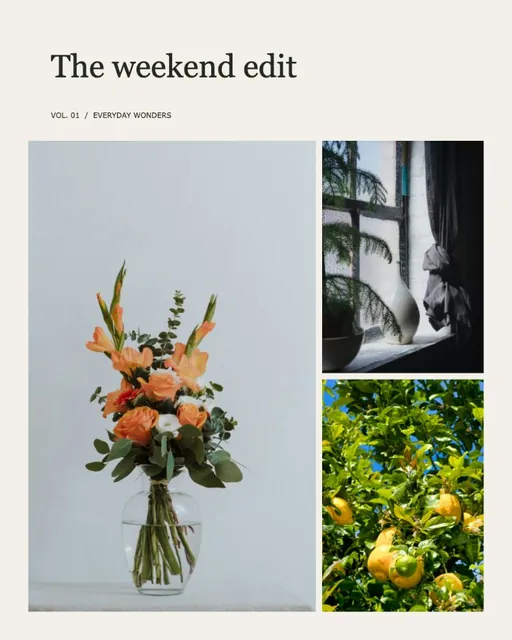 How to make a photo collage