Try the combine photos on iphone


Side by side: the same height, nothing cut off and no white strip.
The short answer
To combine two photos on iPhone without an app, open this page in Safari, tap Add photos and choose both photos. They are joined side by side at the same height, and Stacked puts one above the other. Tap Download, then Save or share and Save Image. We also combined the same vertical and horizontal photo with Apple’s Shortcuts app: both photos stayed whole there, and a white strip filled 14.3% of the picture.
Price: Free — no account, no watermark, nothing to buy.
- Two photos at the same height
- No white strip, nothing cropped
- Saves straight to Photos

How to combine photos on iPhone in four steps
- Tap Add photosOpen this page in Safari, tap Add photos, then Photo Library, and choose the two photos. HEIC photos from the iPhone camera work.
- Pick Side by side or StackedSide by side joins them in a row at the same height. Stacked puts one above the other at the same width.
- Swap them if you likePress and hold one photo and drag it onto the other to swap their places.
- Download and saveTap Download, then Save or share, then Save Image. The combined photo goes into Photos as a JPG with no watermark.
Combine photos on iPhone: what we measured
On November 15, 2026 we combined the same two 12-megapixel HEIC photos from an iPhone camera roll: one vertical (3024 × 4032) and one horizontal (4032 × 3024). Apple’s Shortcuts ran on an iPhone 17 Pro simulator with iOS 26.5. This page ran with the same two files in a browser set to a phone screen. Then we opened every saved file and counted the white pixels.
| Shortcuts: Horizontally | Shortcuts: Vertically | This page: Side by side | This page: Stacked | |
|---|---|---|---|---|
| Result size | 7056 × 4032 | 4032 × 7056 | 3000 × 1440 | 1440 × 3000 |
| Each photo kept whole | Yes | Yes | Yes | Yes |
| White space | 14.3%, under the horizontal photo | 14.3%, beside the vertical photo | None | None |
| File size | 3.8 MB JPG | 3.8 MB JPG | 1.1 MB JPG | 1.1 MB JPG |
| Set up first | Build a shortcut | Build a shortcut | Nothing | Nothing |
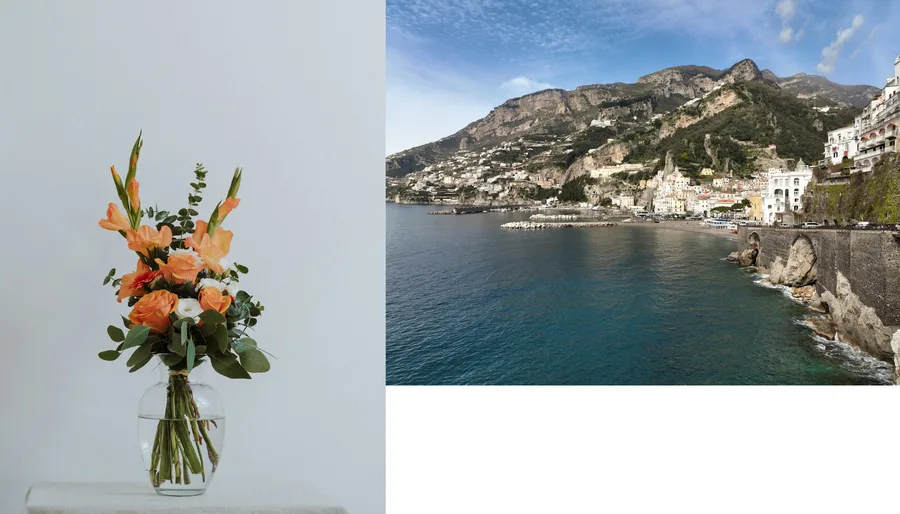 Shortcuts, Horizontally
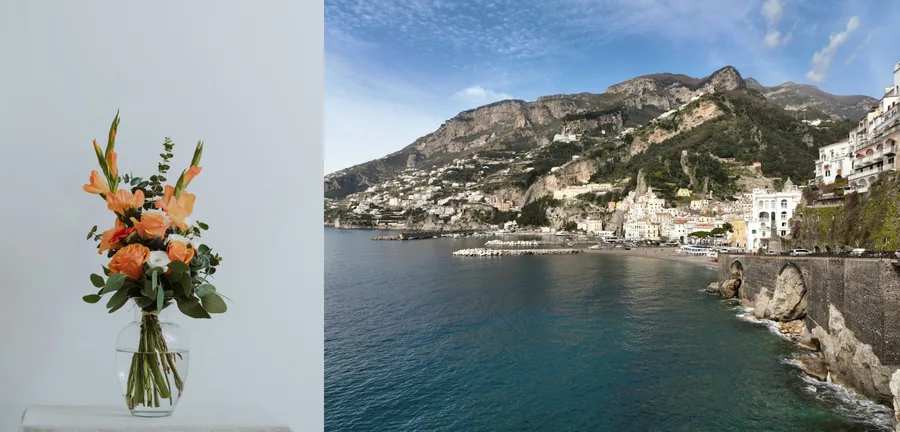 This page, Side by side
Why Shortcuts leaves a white strip
Combine Images places each photo at its own pixel size. A vertical iPhone photo is 4032 pixels tall and a horizontal one is 3024, so in a row the horizontal photo ends 1008 pixels short and the gap is white. Stacked, the same strip appears at the side. This page scales both photos to the same height, or to the same width when stacked, so the edges meet and nothing is cut off.
The Shortcuts file is wider, at 7056 pixels, because it keeps both photos at full size. This page saves 3000 pixels on the long side by default. Open Size and format in the download window and choose 4096 pixels for a bigger file.
How to combine photos on iPhone with Shortcuts
- Open Shortcuts and tap +.
- Add Select Photos, tap its arrow and turn on Select Multiple.
- Add Combine Images. Keep Horizontally, or tap it and choose Vertically or In a Grid.
- Add Save to Photo Album.
- Tap the play button, choose two photos and tap the check mark.
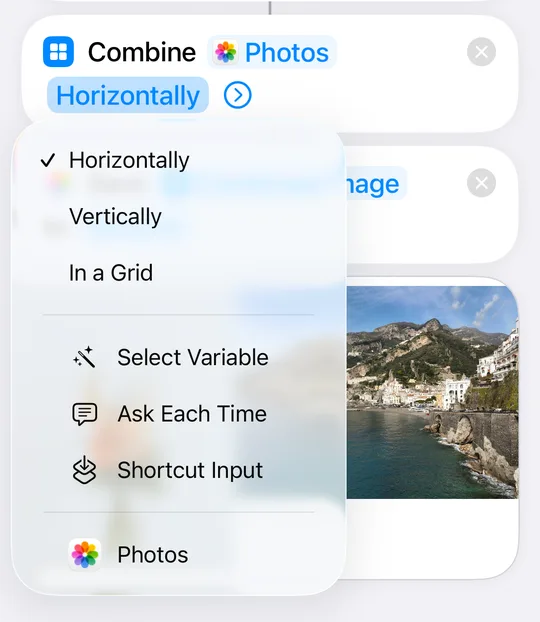
In a Grid crops every photo to a square. In our earlier run it cut 25% from each 12-megapixel photo; the iPhone collage guide has those numbers.
“Merge” in the Photos app does something else
Searching for how to merge photos on iPhone often leads to the Duplicates album. Its Merge button keeps one copy of a photo you saved twice, with the best quality and details from the set, and moves the extra copies to Recently Deleted. It does not put two different photos into one picture. Apple lists it under Collections, then Utilities, then Duplicates. Source: Apple iPhone User Guide, “Merge duplicate photos and videos on iPhone”, read November 15, 2026.
Which way to combine two photos on iPhone
- A vertical and a horizontal photo, with no white edge: this page, Side by side or Stacked.
- Two photos of the same shape at full pixel size: Shortcuts, Horizontally or Vertically.
- Three or more photos in a tidy layout: the iPhone collage guide.
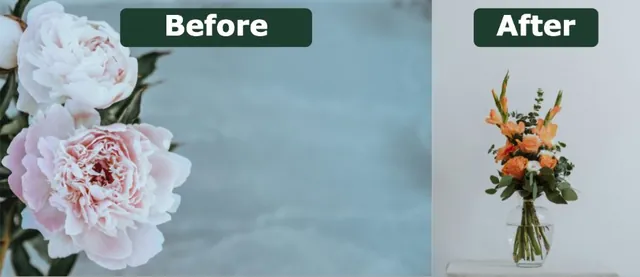
- Before and after, with labels: the before and after photo maker.
After you combine photos on iPhone
- Save Image puts the picture in Photos. Download JPG saves it to Files, in the Downloads folder.
- For a bigger file, open Size and format in the download window and choose 4096 pixels.
- Add a third photo and it joins the same row. Up to 30 photos fit.
- Your photos stay on the iPhone. When you combine photos on iPhone here, the page opens them in Safari and sends nothing to a server.
Combine photos on iPhone questions
Still stuck? Email support@collagemaker.org.
Is this way to combine photos on iPhone free?
Yes. It is free, with no account, no watermark and nothing to buy. Photos are processed in Safari and are not uploaded.
How do I combine two photos into one on iPhone without an app?
Open this page in Safari, tap Add photos and choose both photos. They are joined side by side at the same height. Tap Download, then Save or share and Save Image.
Does iPhone have a built-in way to combine photos?
The Photos app has no combine option on iOS 26.5. The Shortcuts app can, with Apple’s Combine Images action, which joins photos horizontally, vertically or in a grid.
Why is there a white bar when I combine photos with Shortcuts?
Combine Images keeps each photo at its own pixel size. With one vertical and one horizontal photo, the white strip took 14.3% of our result. This page scales both photos to the same height, so there is no strip.
How do I put two pictures side by side on iPhone?
Add both photos here and keep Side by side selected. To put one above the other, tap Stacked.
What does Merge do in the iPhone Photos app?
Merge is in the Duplicates album. According to Apple, it keeps one copy of a duplicated photo and moves the extra copies to Recently Deleted. It does not combine two different photos.
Can I combine HEIC photos on iPhone?
Yes. Both photos in our test were HEIC files from an iPhone camera roll, and they opened with no conversion step on your side.
How big is the combined photo?
It is 3000 pixels on the long side by default, and 4096 if you choose it under Size and format. Our vertical and horizontal pair came out at 3000 × 1440 side by side.
 Combine photos
 Collage on iPhone
 Before and after
 Wallpaper collage maker